Help and picture guide
Simple steps with pictures. Take your time.
Put the planner on your home screen
It then opens like any other app, works without internet, and can send you reminders. Choose your device:
iPhone or iPad
- 1
Open the link from your email in Safari. Safari is the blue compass icon.
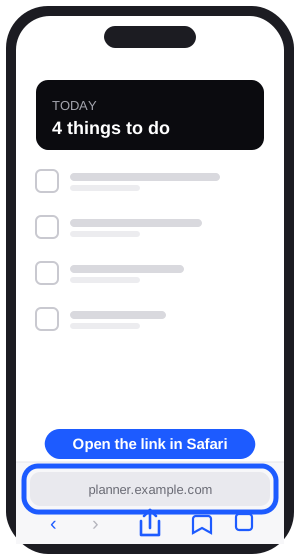
- 2
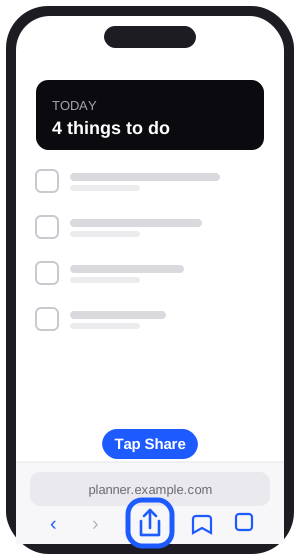
Tap the Share button. It is a square with an arrow pointing up, at the bottom of the screen (at the top on iPad). If you cannot see it, tap the three dots first.
- 3
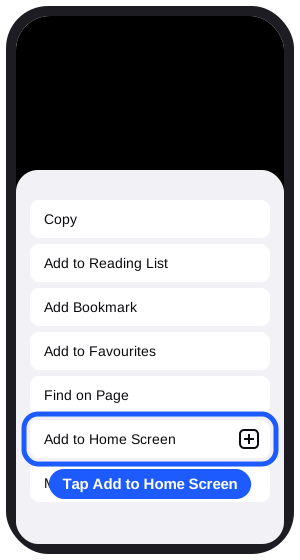
Scroll down a little and tap Add to Home Screen.
- 4
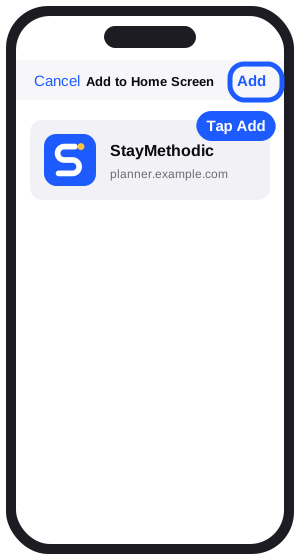
Tap Add in the top right corner.
- 5
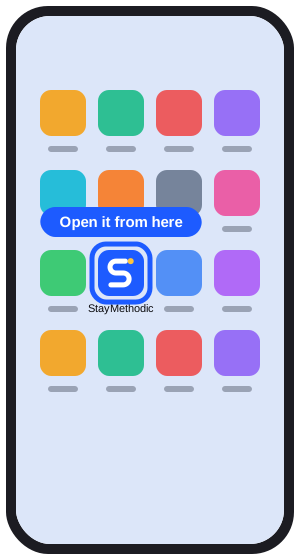
The planner is now on your Home Screen. From now on, always open it from this icon.
Android phone
- 1
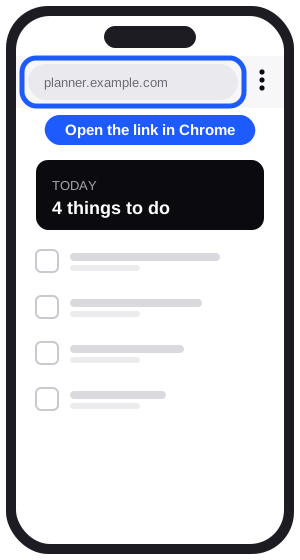
Open the link from your email in Chrome.
- 2
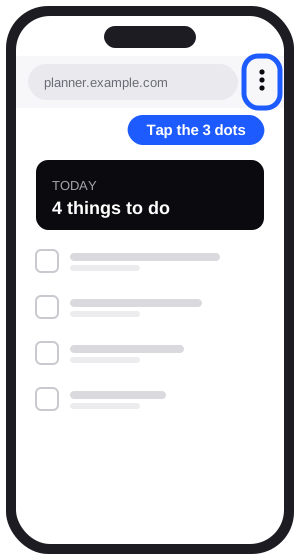
Tap the three dots in the top right corner.
- 3
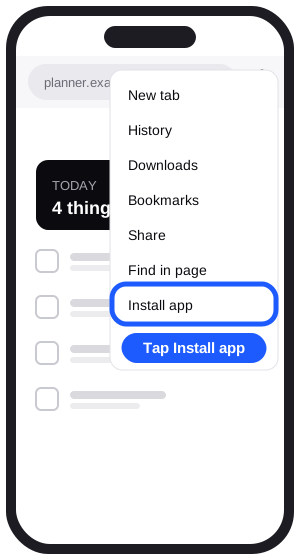
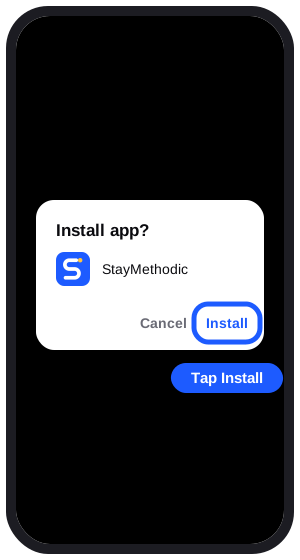
Tap Install app. On some phones it says Add to Home screen.
- 4
Tap Install.
- 5
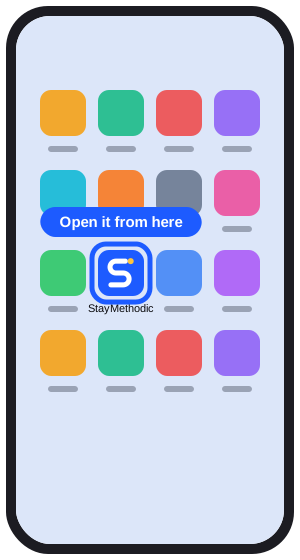
Open the planner from the new icon on your home screen.
Computer
- 1
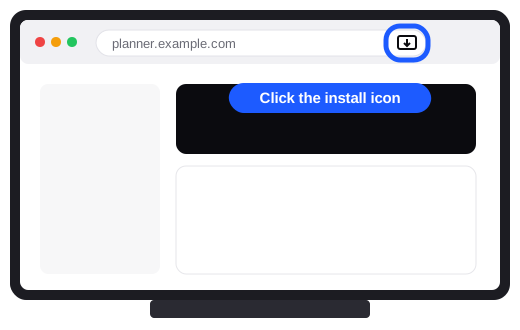
In Chrome or Edge, click the small install icon at the right end of the address bar, then click Install.
- 2
On a Mac using Safari, click File in the menu at the top of the screen, then Add to Dock.
- 3
You can also just bookmark the page. The planner works the same in a normal browser tab.
How to use the planner
Getting started
- 1
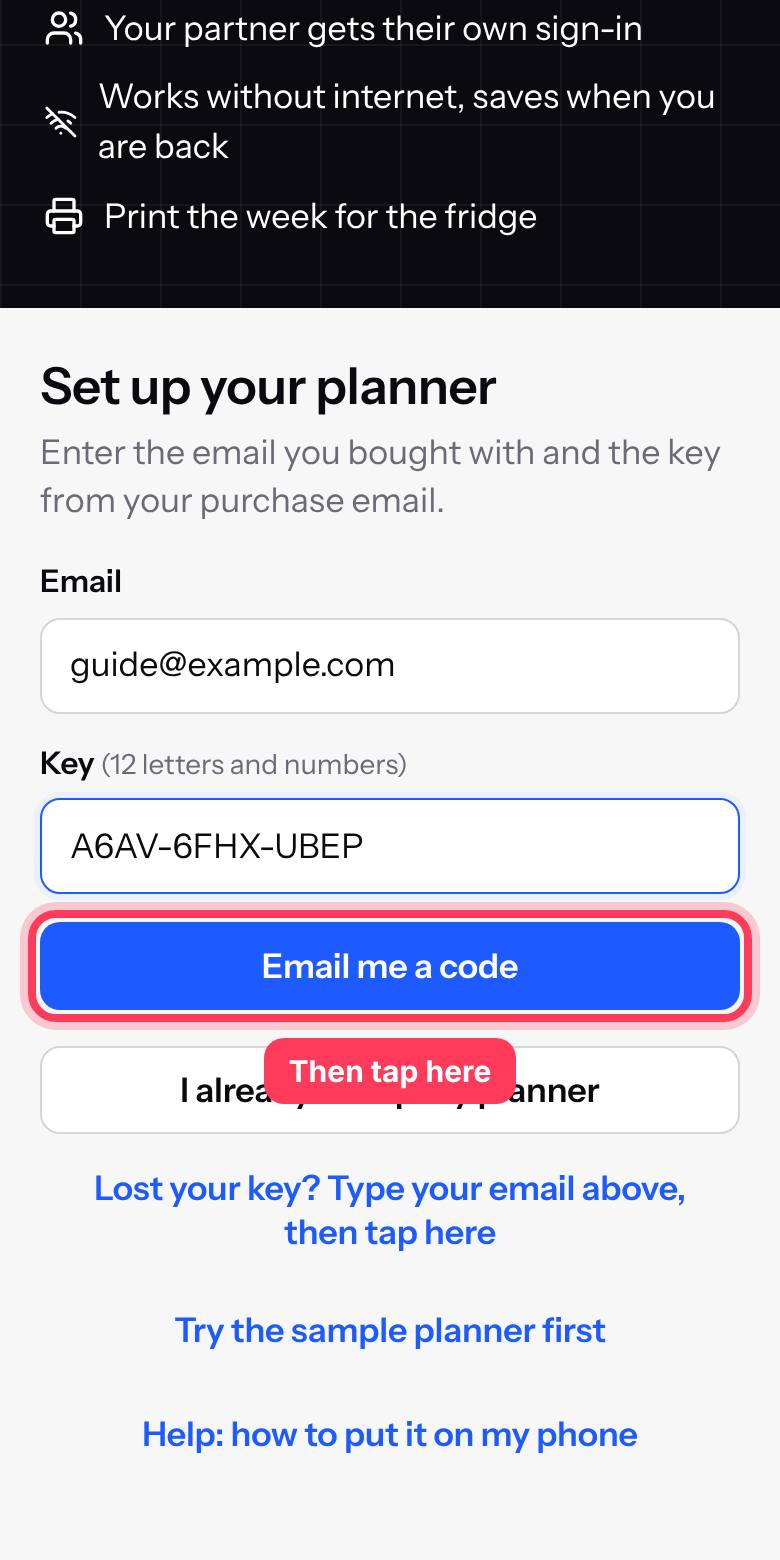
Type the email you bought with and the key from your purchase email. Then tap Email me a code.
- 2
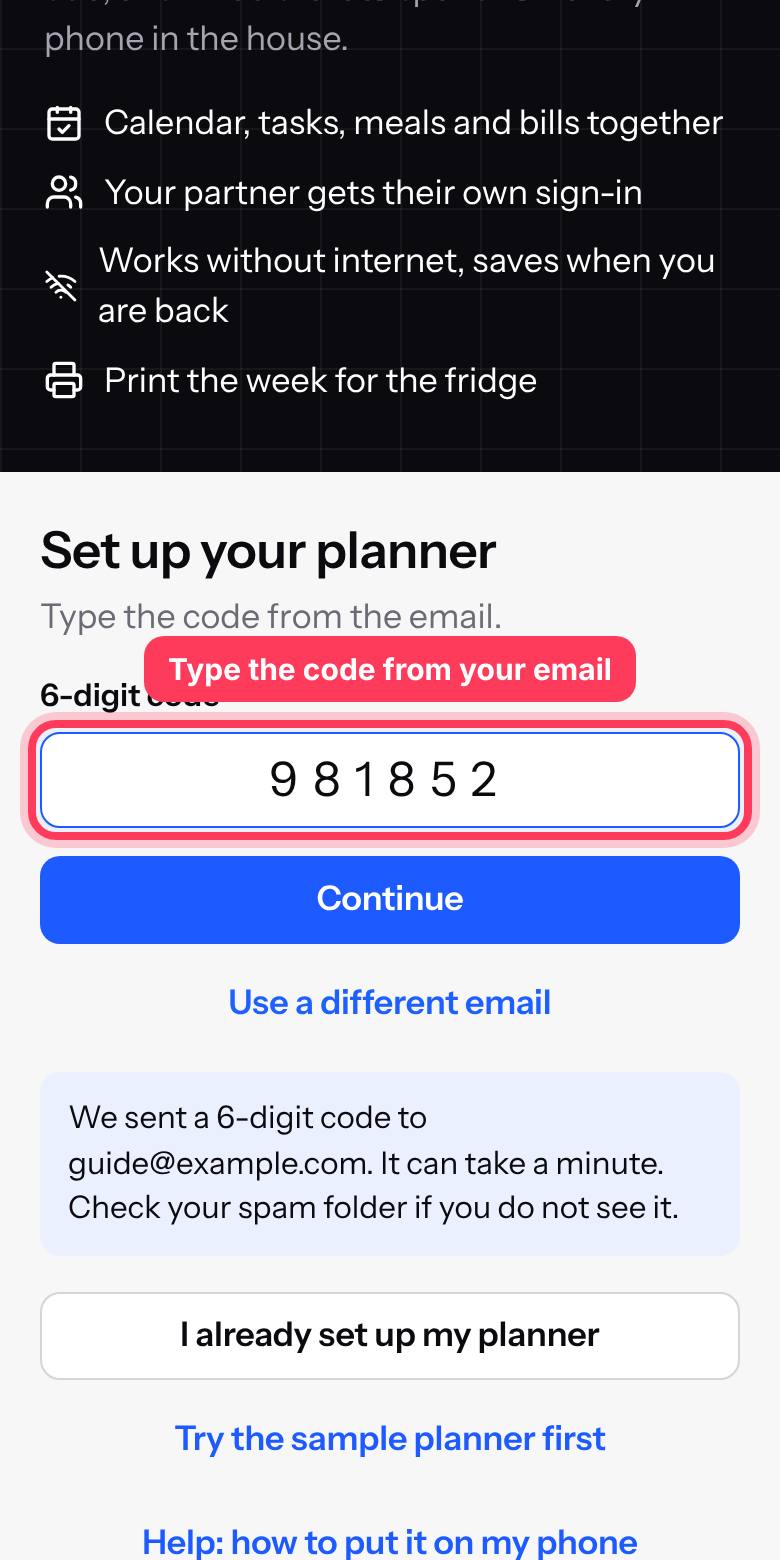
Check your email for a 6-digit code. Type it in and tap Continue.
- 3
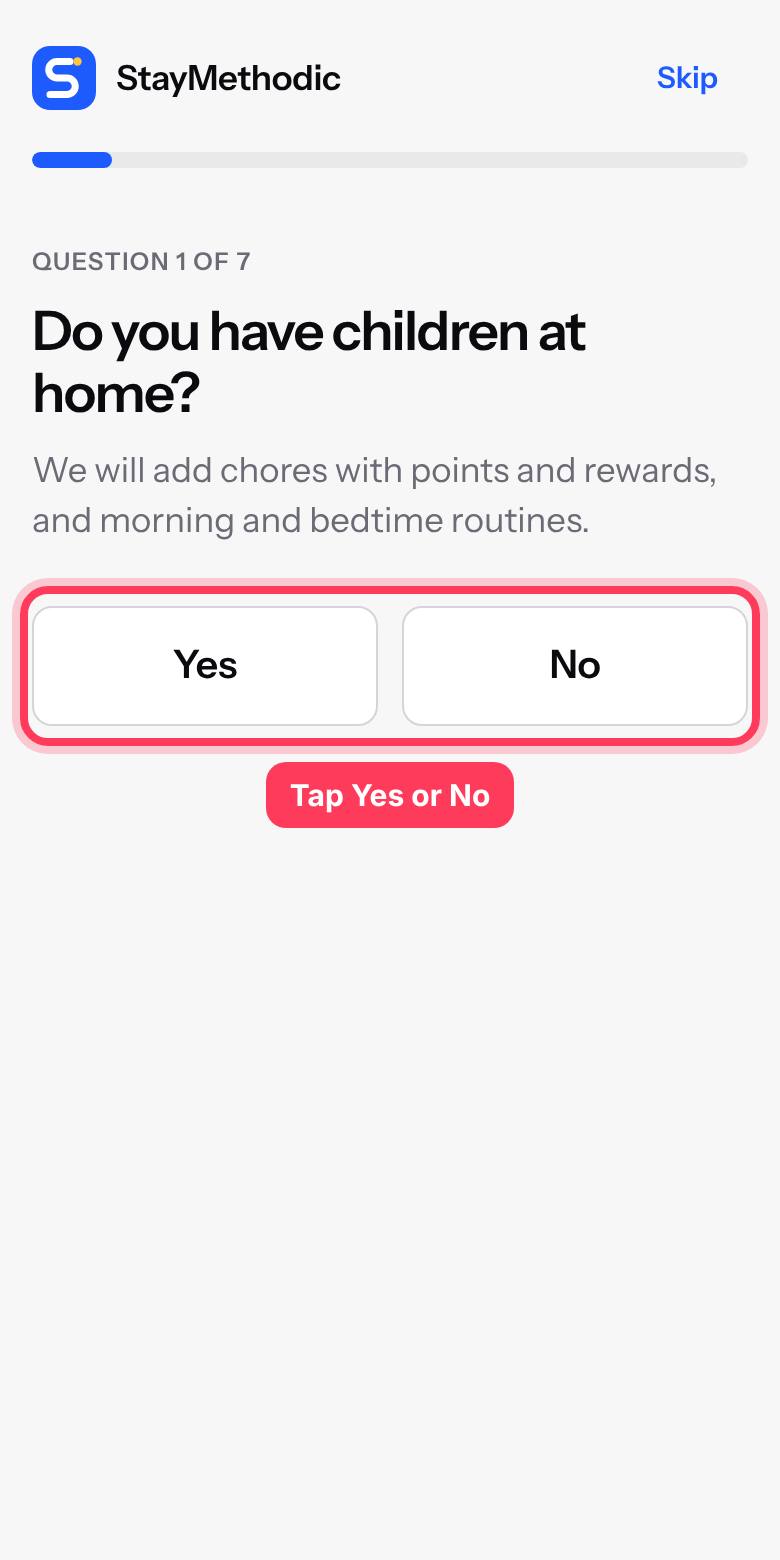
Next, answer a few quick Yes or No questions about your family. StayMethodic then shows only the sections you need. You can change this any time in Settings, Sections.
- 4
The first time, your planner has example items so you can see how it works. You can remove them any time in Settings.
Your Today page
- 1
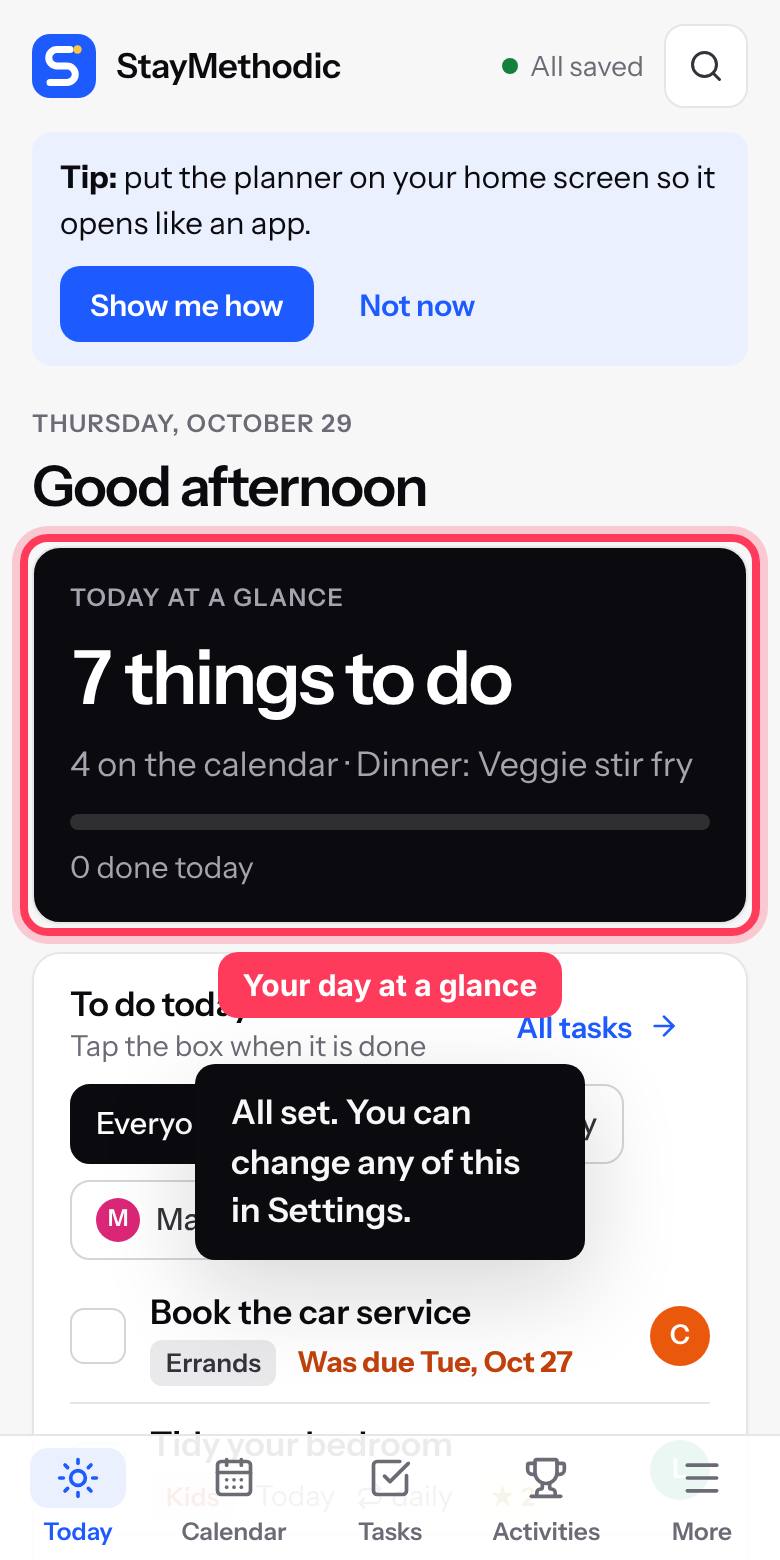
Today shows what is happening, what needs doing and what is for dinner.
- 2
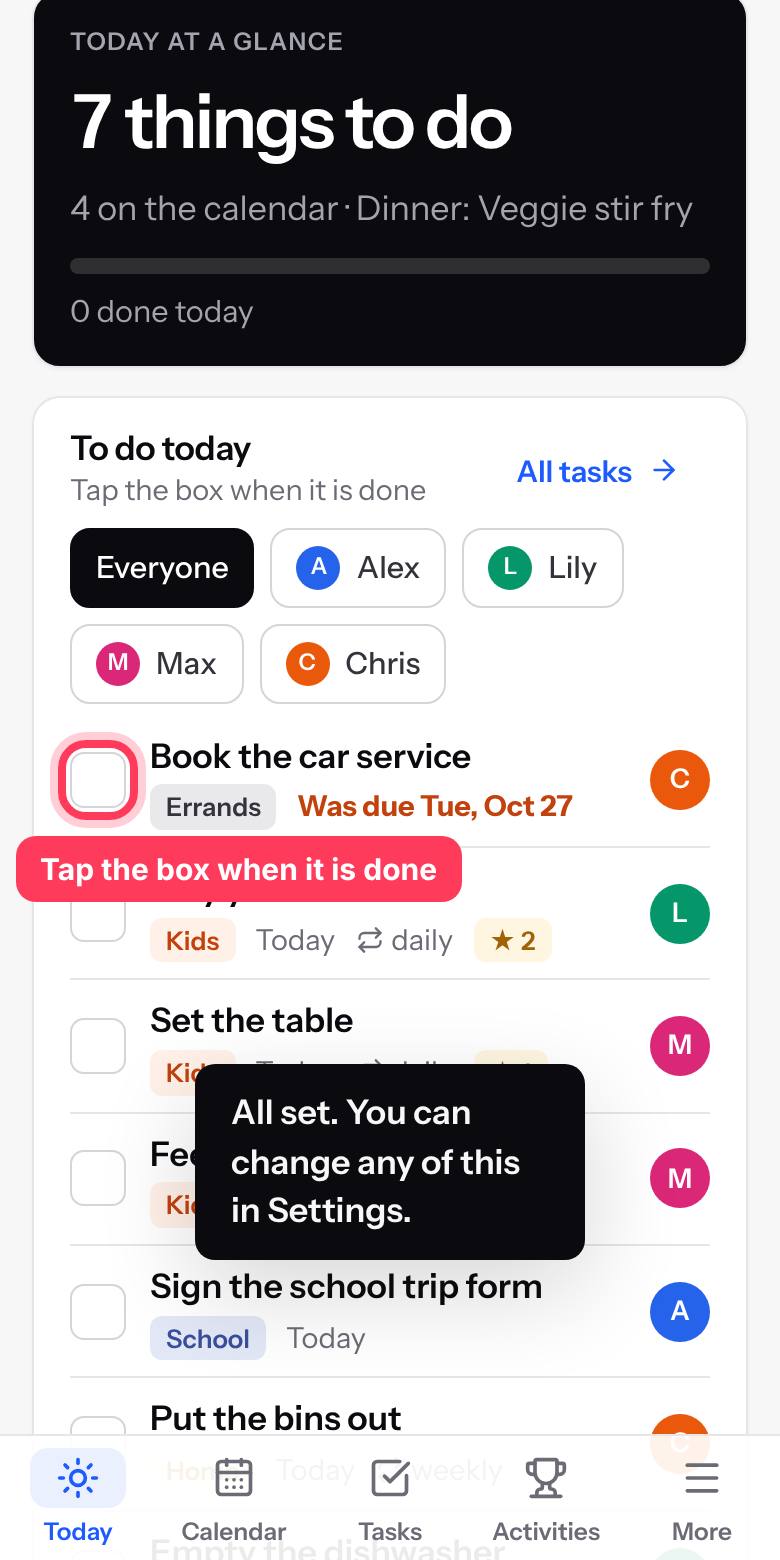
When you finish something, tap the box next to it. Repeating chores move to their next day by themselves.
Adding something
- 1
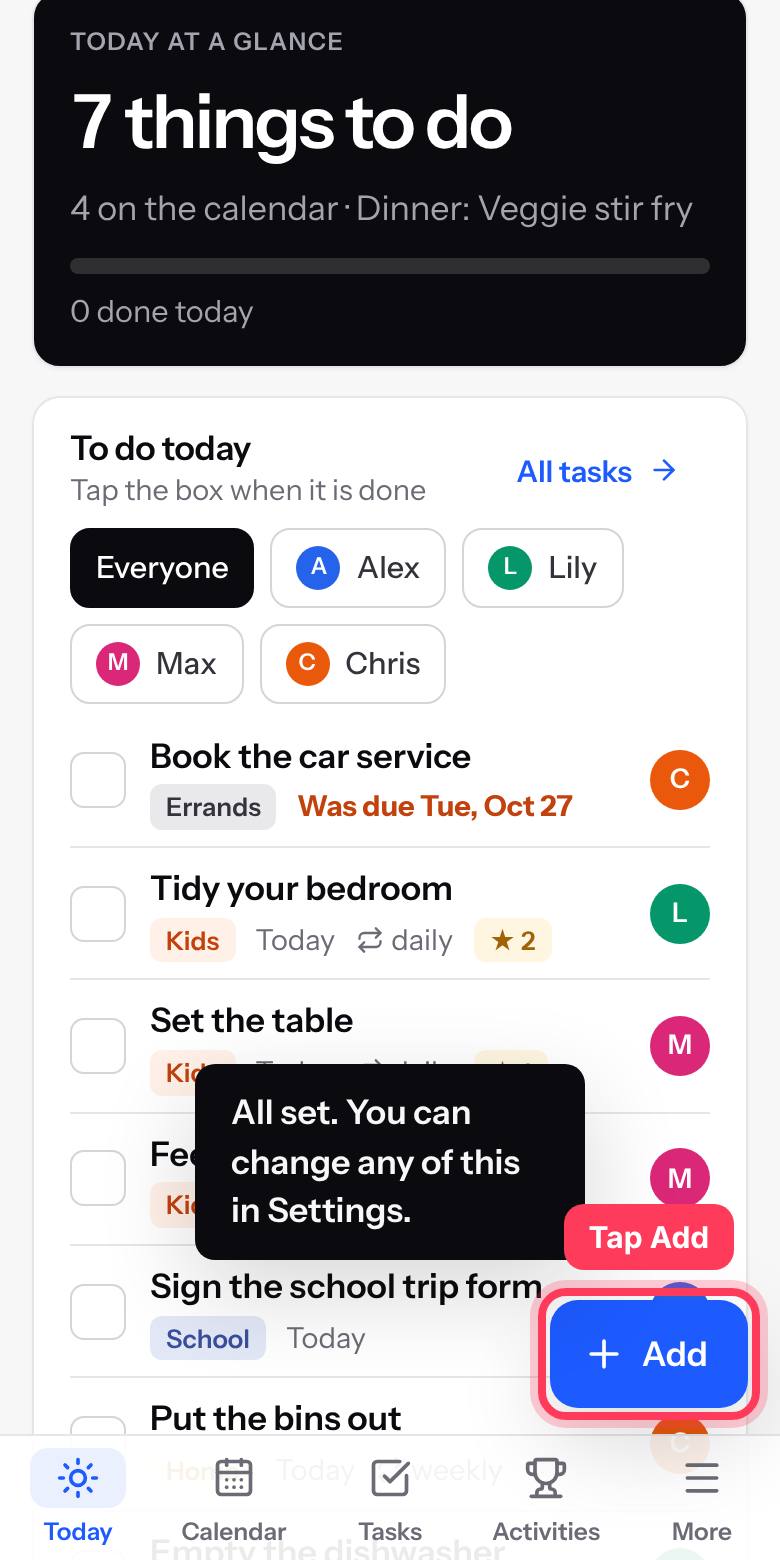
Tap the Add button. It is at the bottom right on a phone, and at the top of the menu on a computer.
- 2
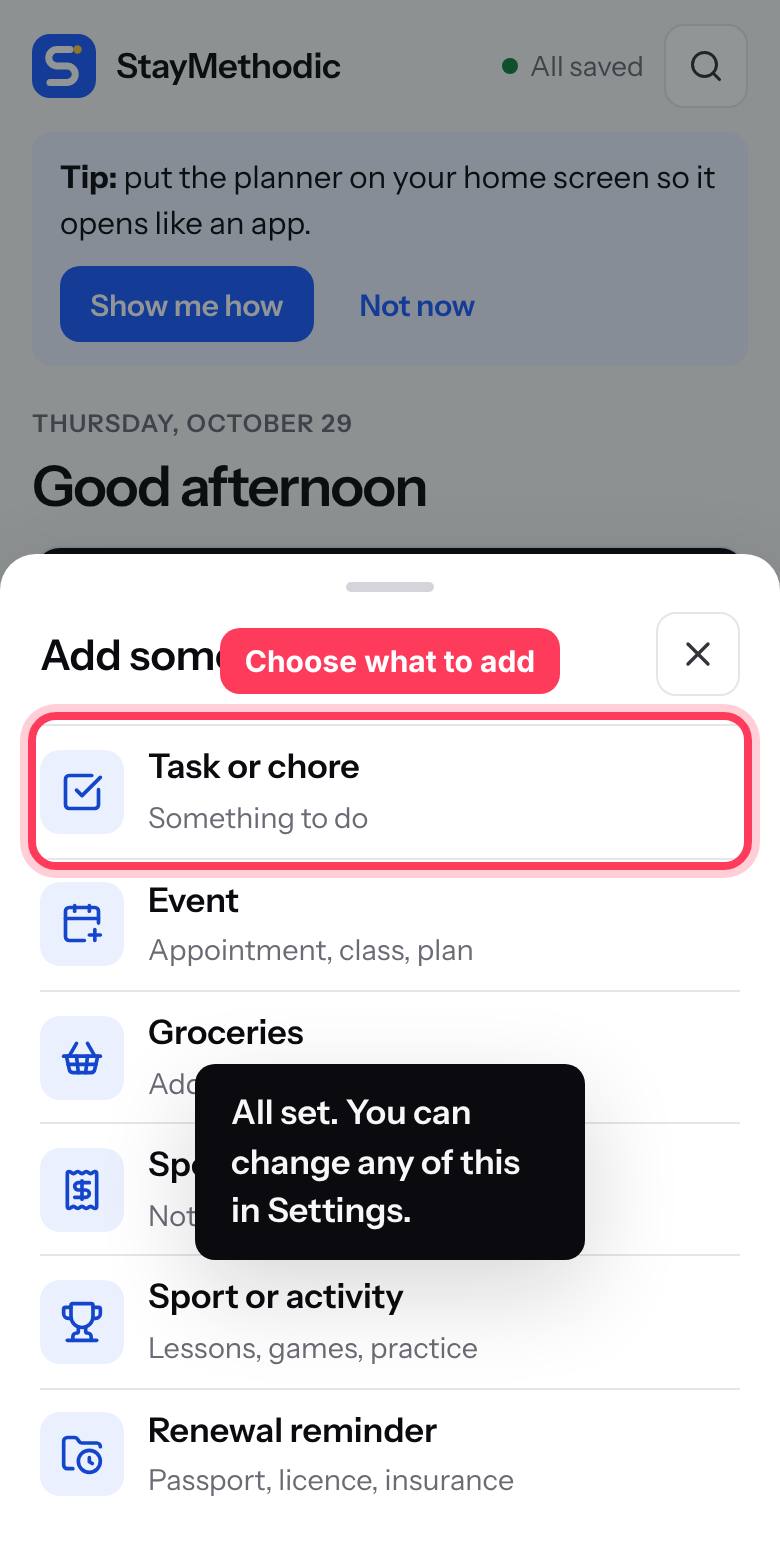
Choose what you want to add: a task, an event, groceries, spending, an activity or a renewal.
- 3
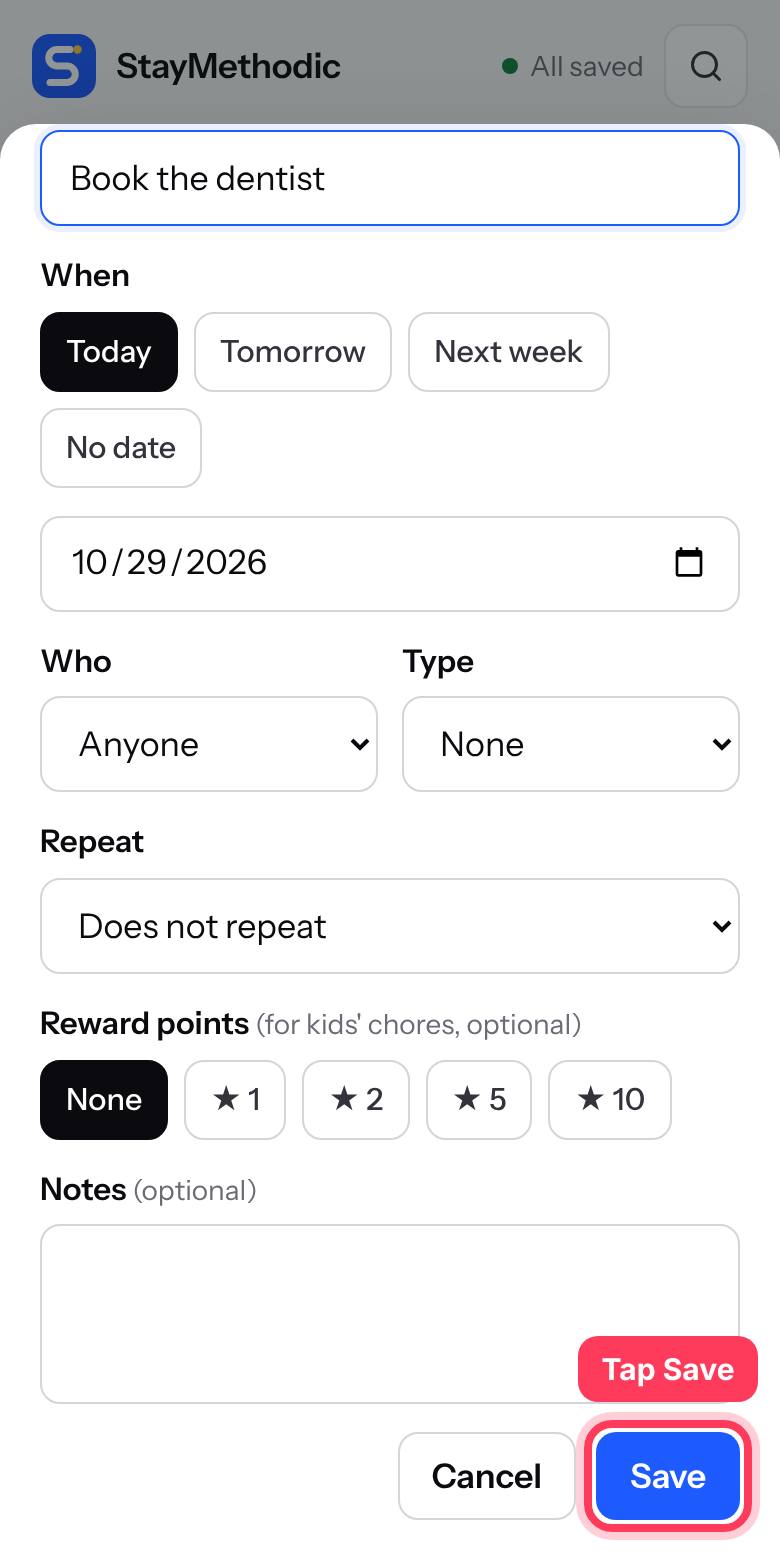
Type what it is, pick the day and who it is for, then tap Save.
The calendar
- 1
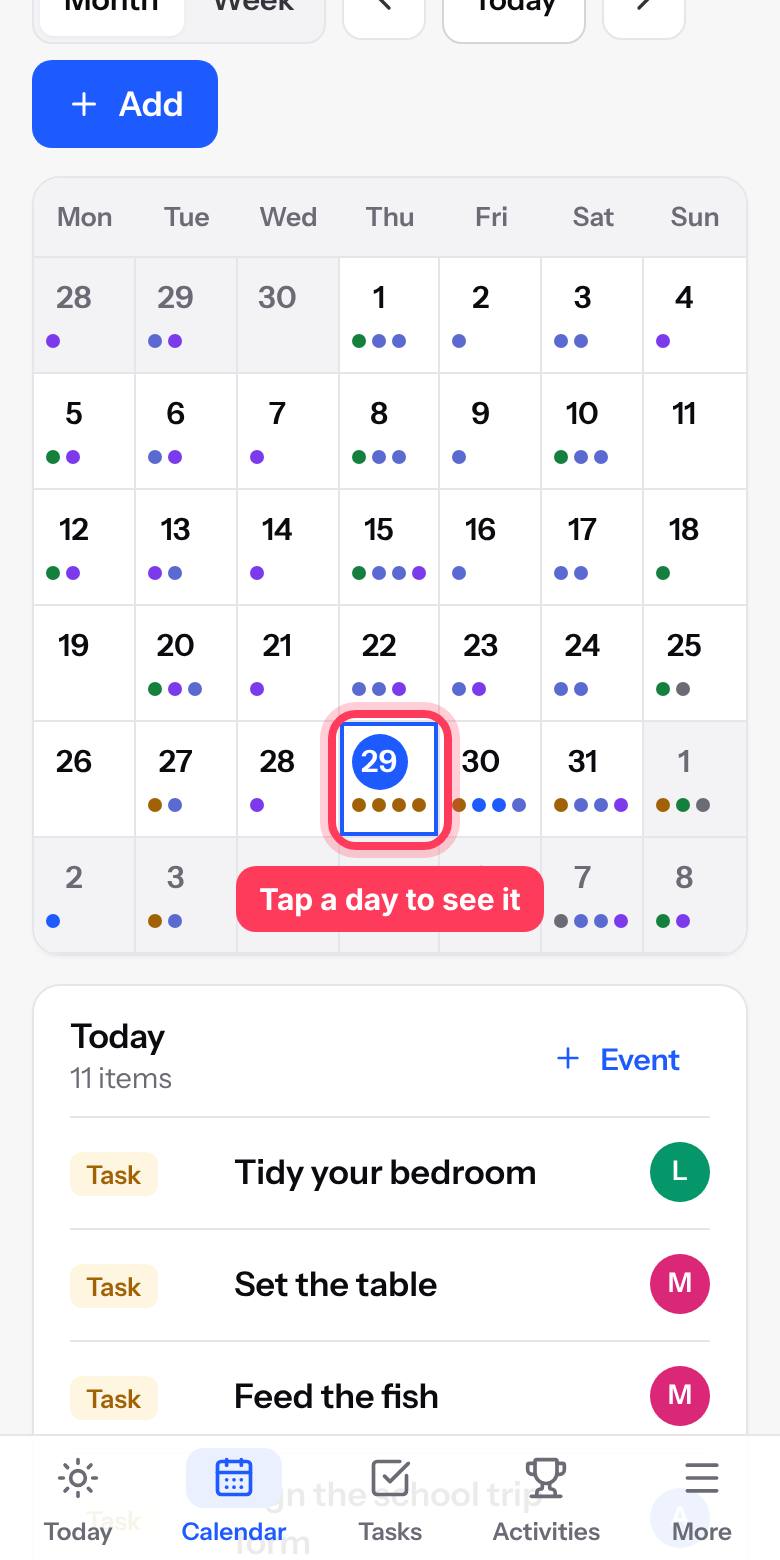
Tap a day to see everything on it. Events, activities, birthdays, bills and to-dos all show here.
Your family
- 1
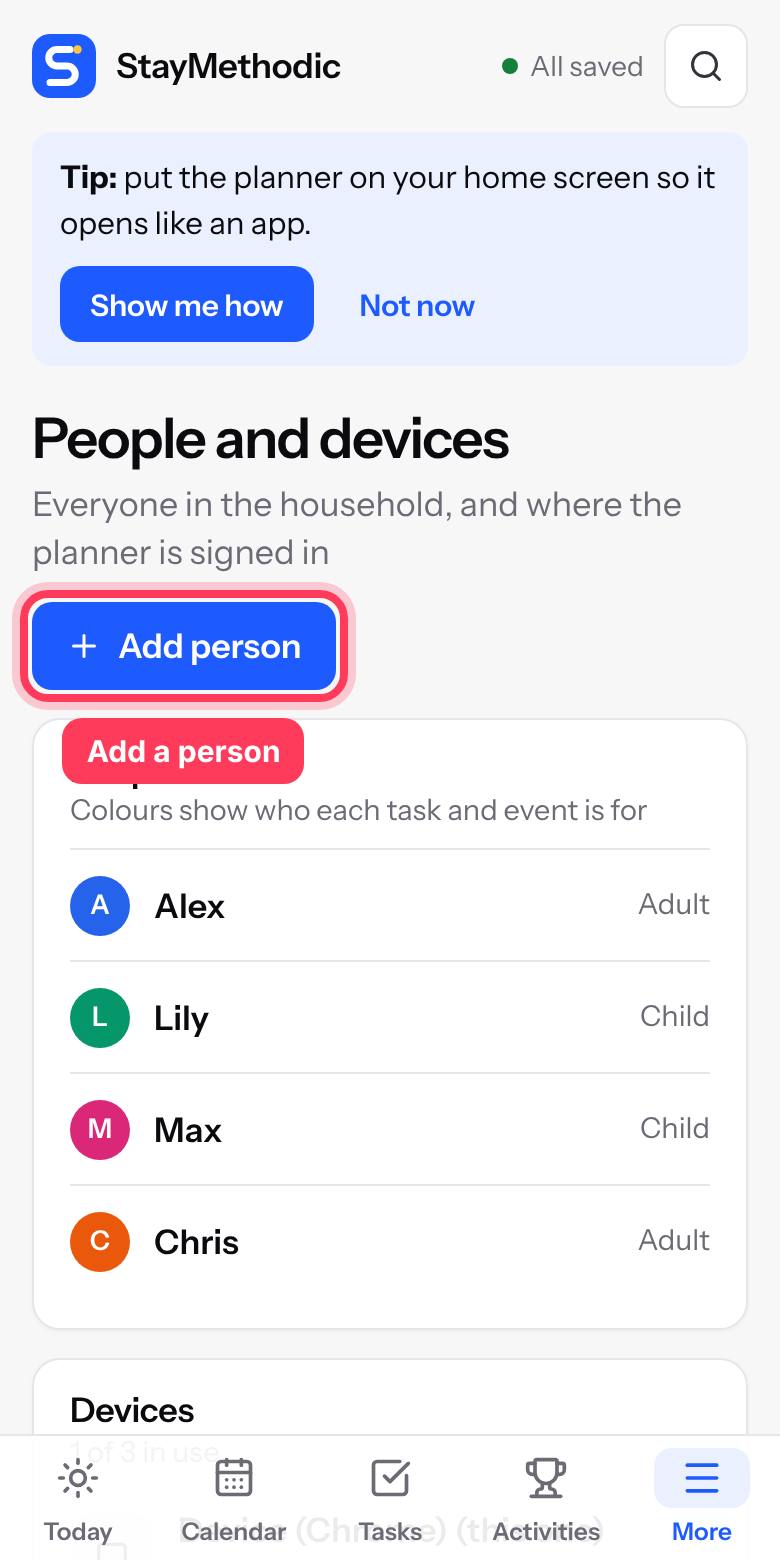
Add everyone who lives with you and give each person a colour. Children do not need their own login.
- 2
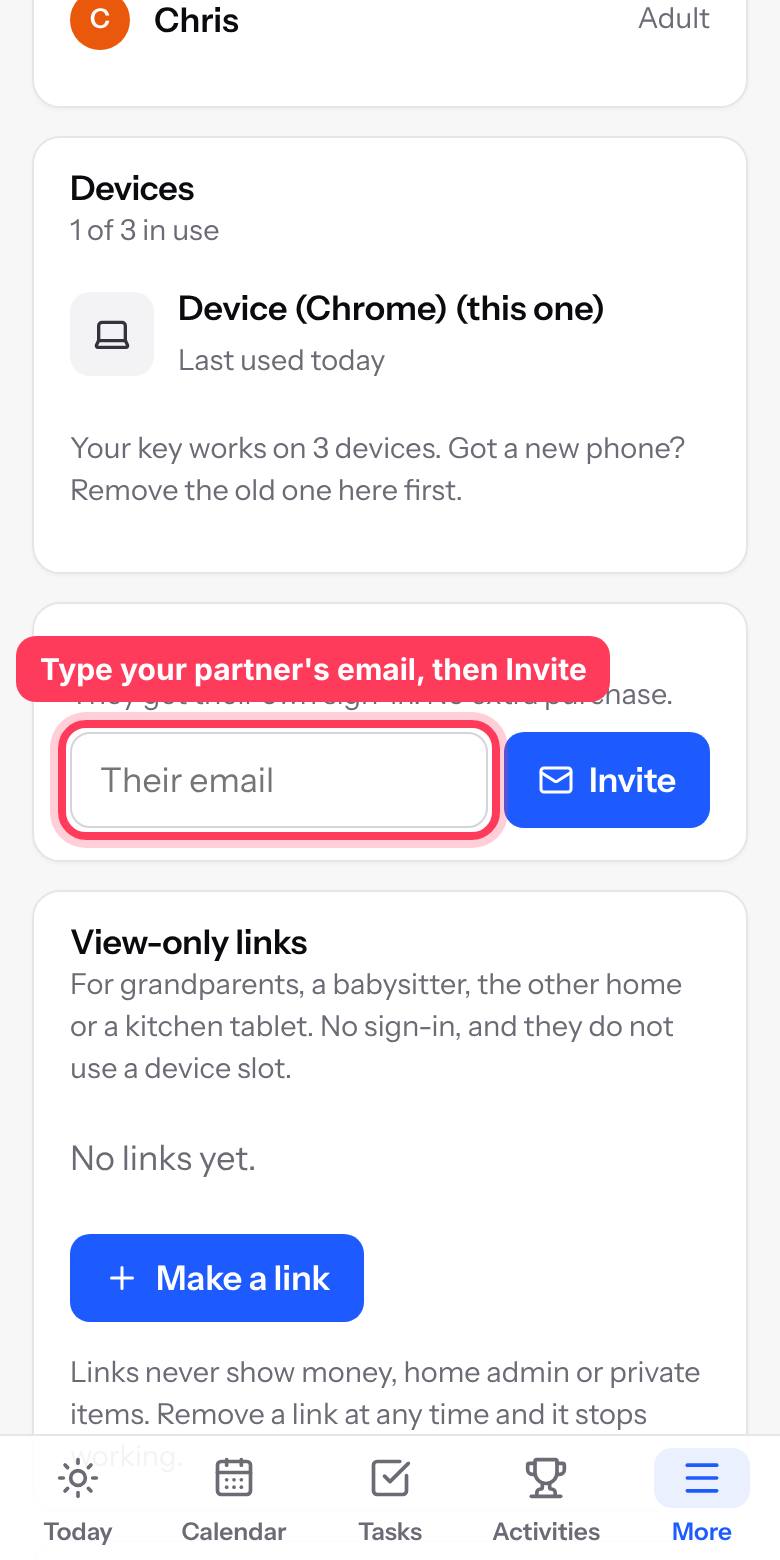
Invite your partner with their email. They get their own sign-in at no extra cost. Your key works on 4 devices in total.
Reminders on your phone
- 1
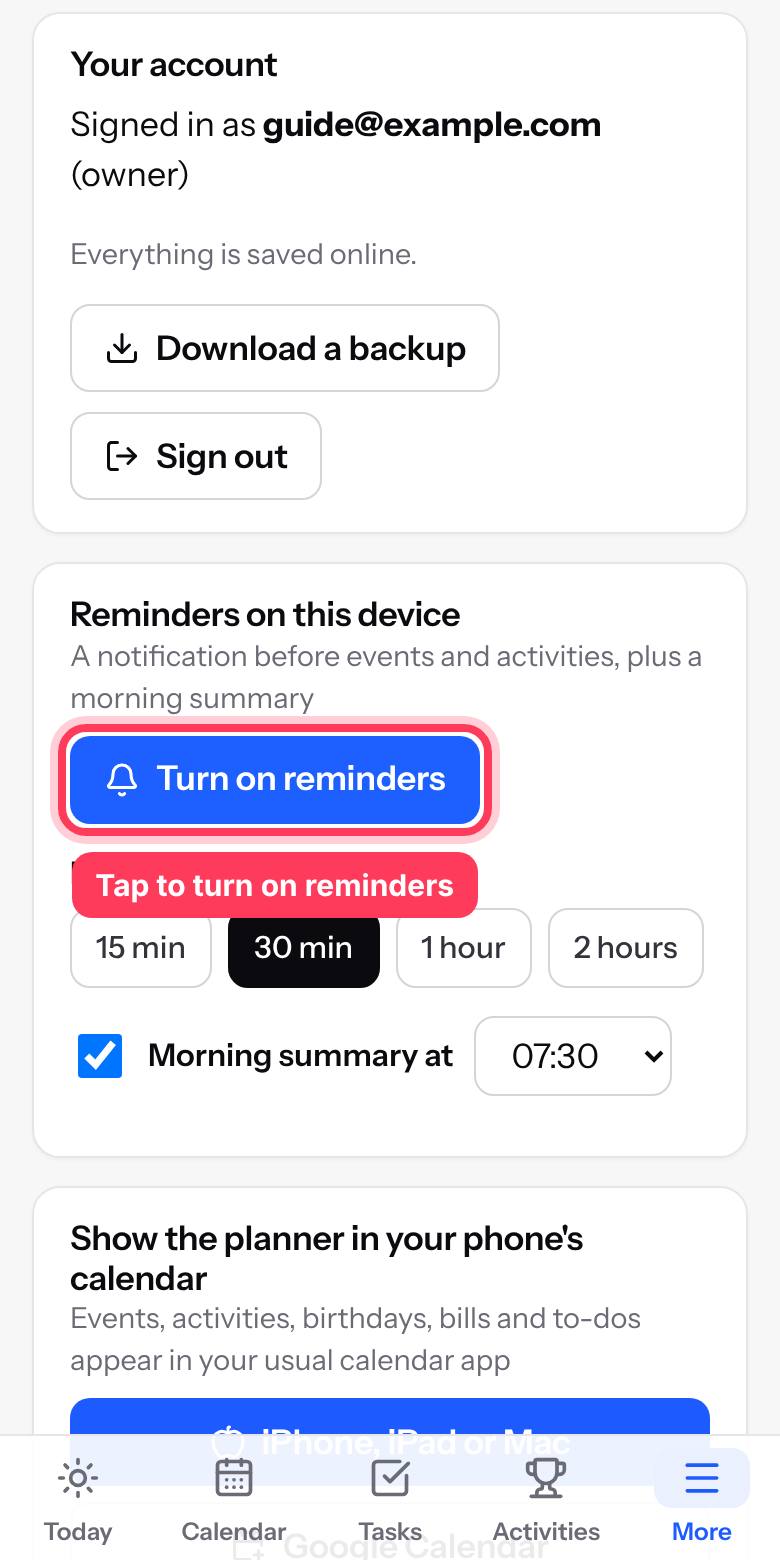
In Settings, tap Turn on reminders on each phone you use. You will get a notification before events and a short summary each morning.
- 2
On iPhone, add the planner to your Home Screen first (see the steps above), open it from the icon, then turn reminders on.
See it in your phone's calendar
- 1
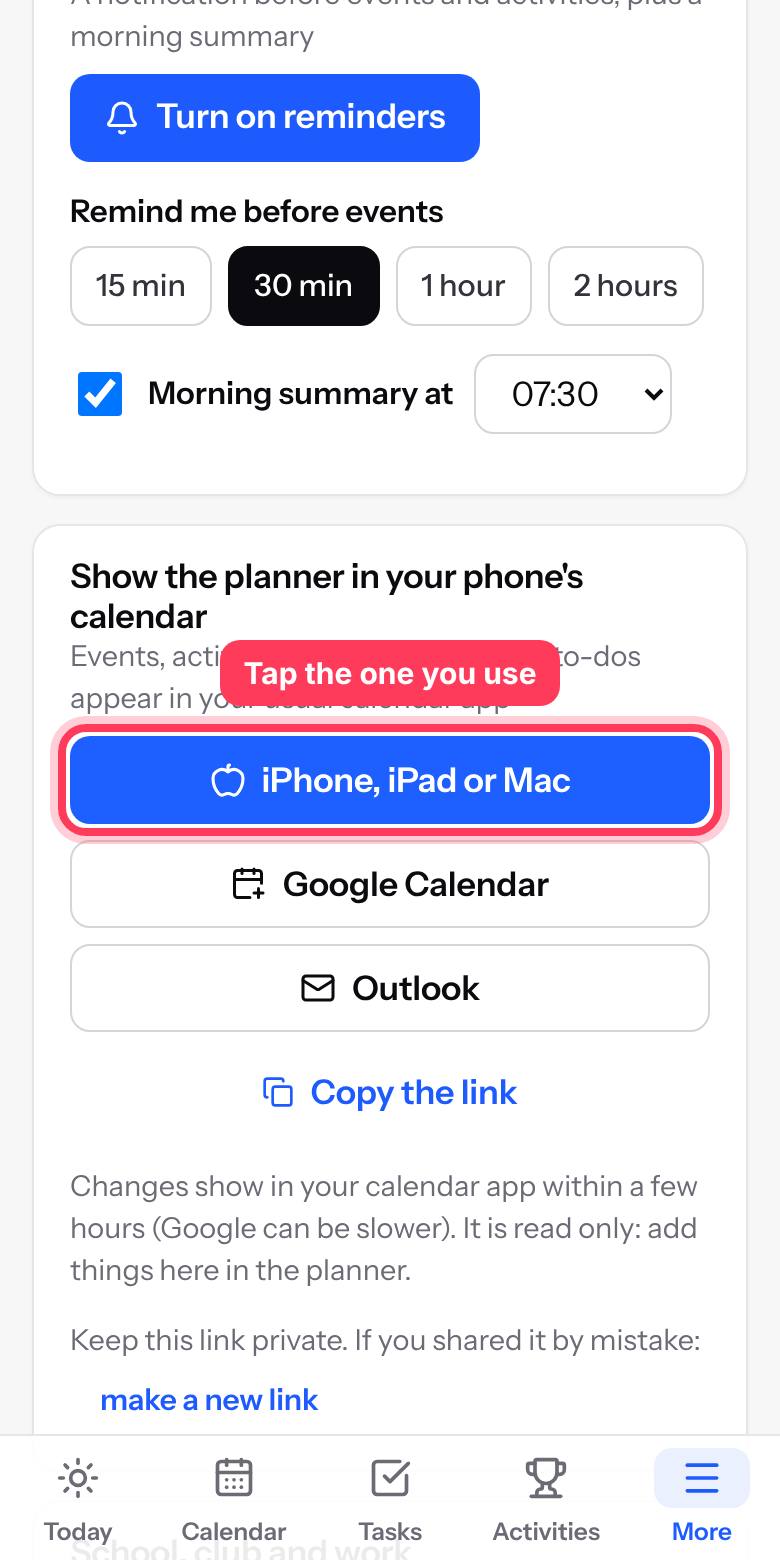
In Settings, tap the calendar you already use. Your planner's events then appear in your normal calendar app too.
Keep it simple
- 1
In Settings, switch off the parts your family does not need. Switch them back on any time and nothing is lost.
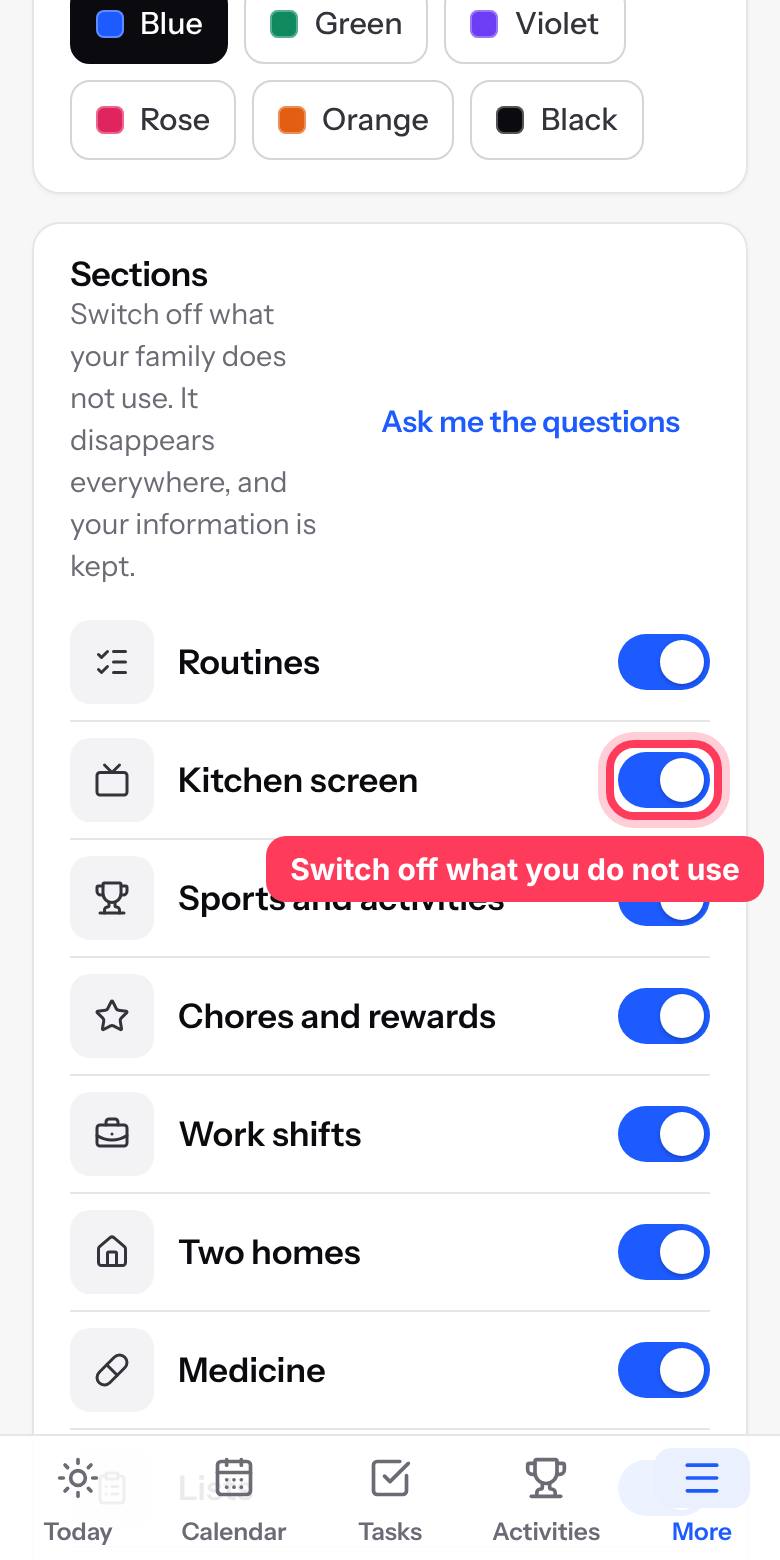
- 2
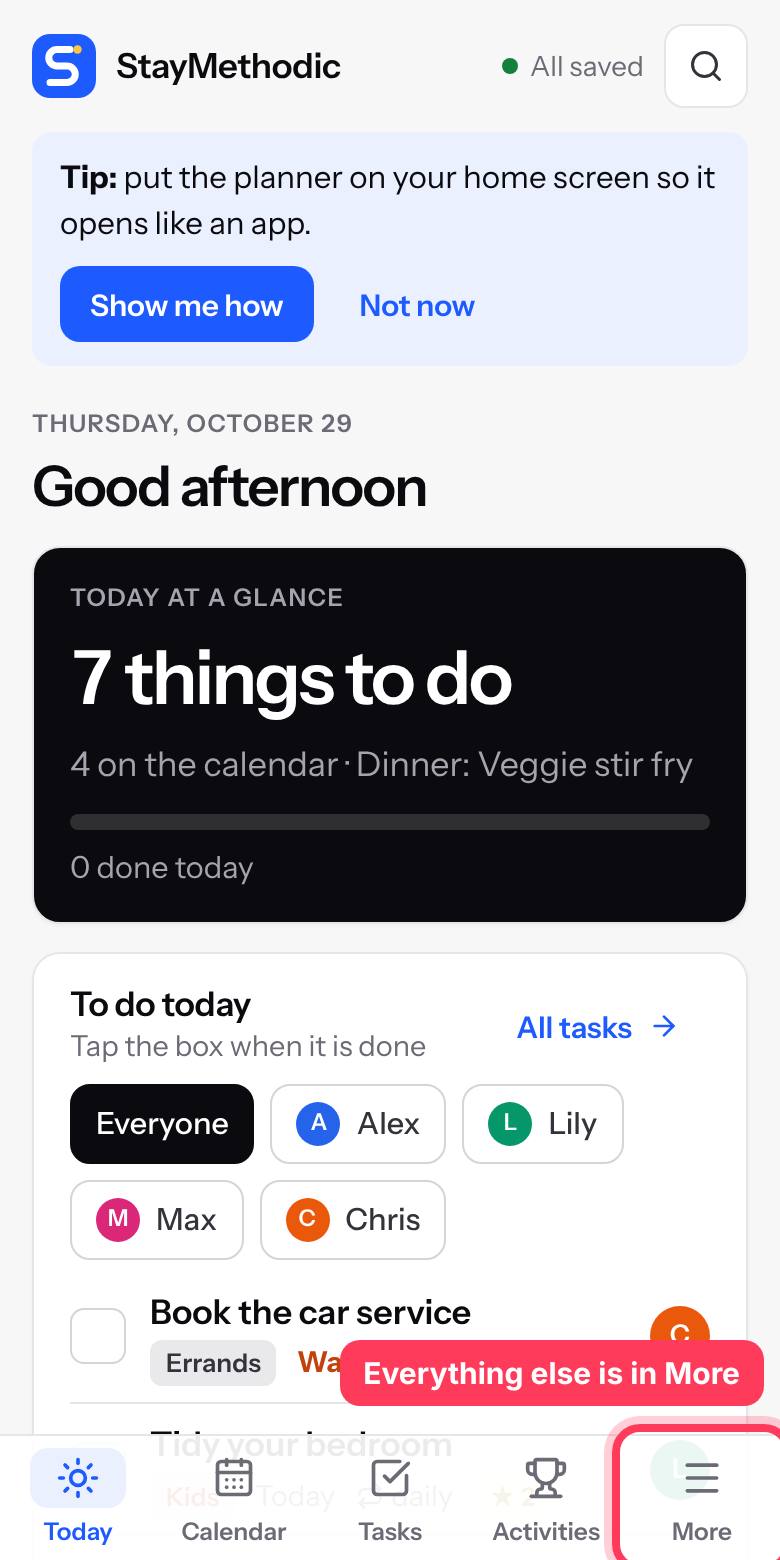
On a phone, everything else is under More. On a computer, everything is in the menu on the left.
Add the school or club calendar
- 1
On the school or club website, look for Subscribe, iCal, ICS or Add to calendar, and copy that link.
- 2
In StayMethodic, open Calendar. Under School, club and work calendars, tap Add.
- 3
Give it a name, paste the link and tap Save. Their events appear on your calendar and on Today, and refresh by themselves every few hours.
Set up the kitchen screen
- 1
Easiest way: open People and devices, then View-only links, and tap Make a link. Name it Kitchen iPad and tick Let them tick off jobs.
- 2
Open that link on the tablet. It does not use one of your 4 devices.
- 3
Tap Keep screen on, and Full screen if you like. Kids can now tap their own jobs to tick them off.
Share with grandparents or a babysitter
- 1
Open People and devices, then View-only links, and tap Make a link.
- 2
Type who it is for. Tick Show family info if they need allergies, contacts and bedtimes.
- 3
Tap Send to share it by message or email. Remove the link any time and it stops working.
Add a work roster
- 1
Open Work shifts and tap Add a roster. Choose whose roster it is.
- 2
Pick a pattern, like 4 days on, 4 days off, and the day it starts. Change shift times if you need to.
- 3
To swap a single day later, tap that day on the Work shifts page.
Set up two homes
- 1
Open Two homes and tap Set up. Name both homes and choose the children.
- 2
Pick your schedule, like Week on, week off or 2-2-3, and the first day at Home A. Add the handover time and place.
- 3
Today shows where the children are tonight. Tap a day on the Two homes page to swap it when plans change.
Log a medicine dose
- 1
Open Medicine and tap Add medicine. Copy the amount and the time between doses from the label.
- 2
Add reminder times if you want a nudge on your phone.
- 3
Each time you give it, tap Log dose. Everyone sees the time and who gave it. StayMethodic does not give medical advice, so always follow the label or your doctor.
Common questions
I lost my key.
On the sign-in page, type the email you bought with and tap "Lost your key?". If your planner is already set up, you do not need the key: tap "I already set up my planner" and sign in with your email.
It says all 4 devices are in use.
On a device you already use, open People and devices and remove the one you no longer use. Then try again on the new one.
I got a new phone.
Remove the old phone in People and devices, then sign in on the new phone with your email. Everything comes back.
I do not see the latest version.
Tap Update now if you see it at the top of the screen. Otherwise close the planner completely and open it again.
Does it work without internet?
Yes. Everything you add is saved on your phone and goes online by itself when you are back on Wi-Fi or mobile data.
How do I get help?
Reply to any email from us and a real person will answer.
Still stuck? Email hello@example.com and a real person will help.